Moving to Noxtua NextGen: for members
Discover how members can switch to Noxtua NextGen, export their data, and make it their default.
Overview
Noxtua NextGen is the new Noxtua app. The app you use today is now called Noxtua Classic.
Your admin invites your organization. Until then, nothing changes for you.
You can switch when you're ready. Both apps are available for now. Soon, only NextGen will be.
You sign in using your current Noxtua account. No new password is required.
How to switch
1. Open the invitation
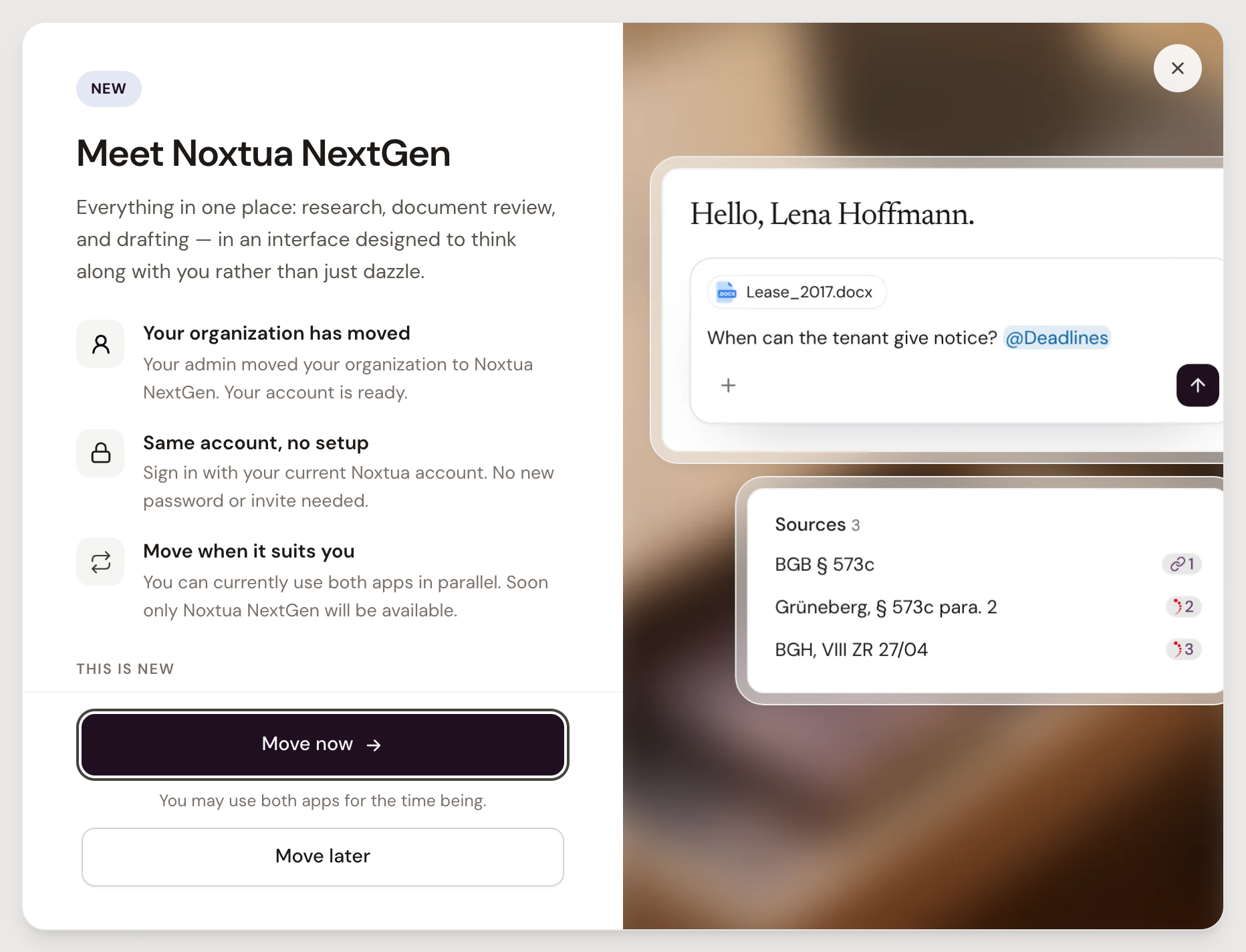
In Noxtua Classic, find the banner at the top: Your organization has moved.

Click Learn more, then Move now. Not ready? Click Move later. The banner stays.
2. Export your data (optional)
If you have data to export, you're offered a copy before NextGen opens.
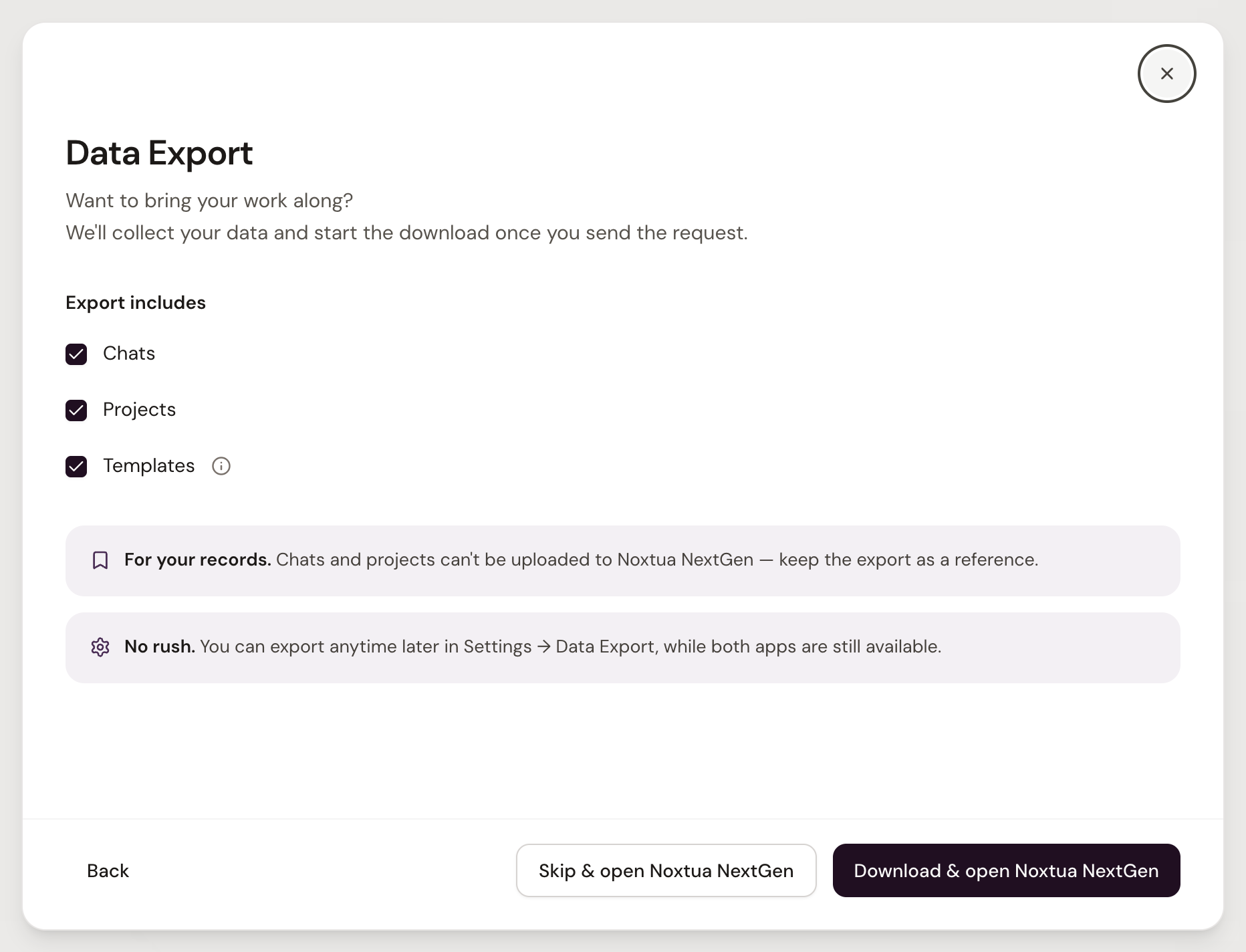
Download & open Noxtua NextGen: the download starts in Noxtua Classic, and NextGen opens in a new tab.
Skip & open Noxtua NextGen: you can export later under Settings › Data Export.
Chats and projects can't be brought into NextGen. Keep the export for your records.
3. Make NextGen your default
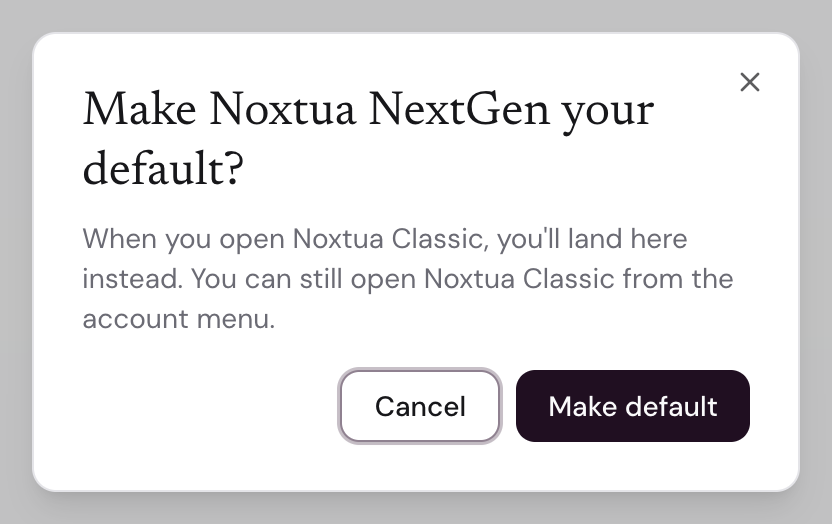
In NextGen, open an empty chat and click Make default in the banner.

Confirm. From now on, opening Noxtua Classic will take you to NextGen.
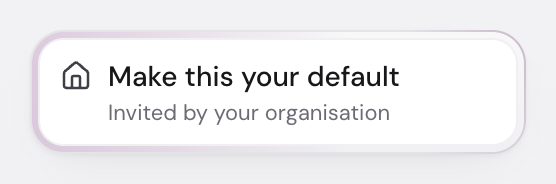
Did you close the banner? Use the card at the bottom of the sidebar instead.
Opening Noxtua Classic after the switch
Once NextGen is your default, Noxtua Classic is still there while it's available:
In NextGen, open the account menu at the bottom of the sidebar.
Click Open Noxtua Classic. It opens in a new tab.
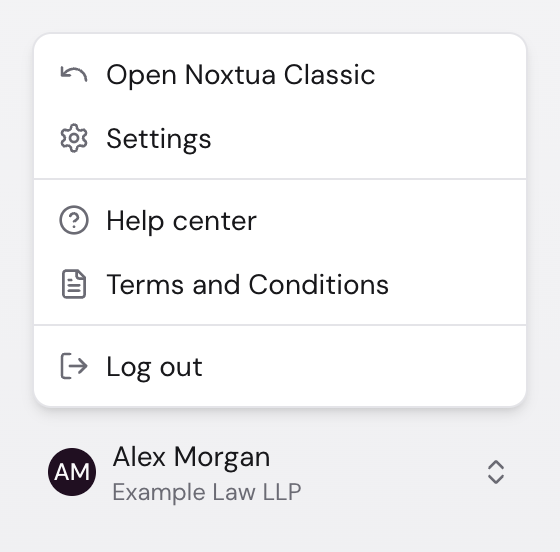
You can work in Noxtua Classic until you sign in again. Your next sign-in will take you back to NextGen.
To go back to NextGen right away, open the account menu in Noxtua Classic, then click Noxtua NextGen.
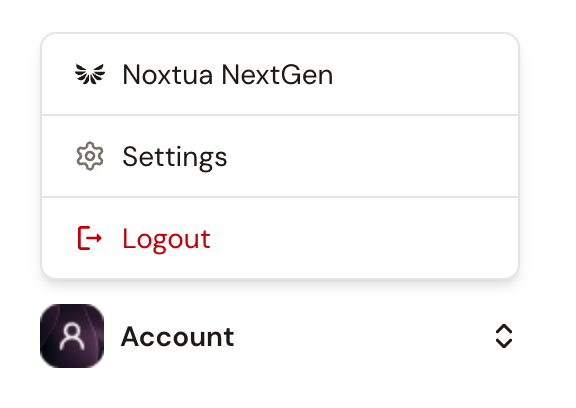
Nothing you do in one app appears in the other. For example, a chat started in Noxtua Classic stays there.
Good to know
Until you click Make default, open NextGen from the banner in Noxtua Classic. Other ways in, like a bookmark, take you back to Noxtua Classic.
Your work stays in Noxtua Classic. Nothing is moved or deleted.
Your choice is yours alone. It doesn't affect your colleagues.
NextGen starts with a clean slate. If there are chats or projects in Noxtua Classic you'd like to keep, export them before Noxtua Classic is switched off.
FAQ
Colleagues have moved, but I don't see the banner. Sign out of Noxtua Classic, then sign back in. Still nothing? Ask your admin whether your organization has been invited.
Can I bring my templates? Templates you created are included in the export. Ask your admin how your team will bring them into NextGen.
My session expired in NextGen, and I was redirected to Noxtua Classic. That's expected until NextGen is your default. Open it again from the banner.
I made NextGen my default, but I land in Noxtua Classic again. Your organization's invitation may have been withdrawn. You'll see the banner again once it's renewed. Ask your admin.
I see a "Continue to Noxtua Classic" link. Click it, then open NextGen from the banner.
Was this helpful?